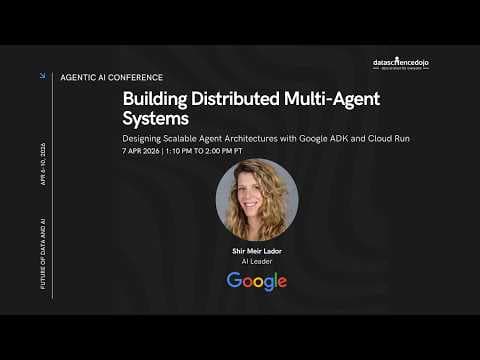
Інструкція: Google ADK & Cloud Run для масштабування AI-агентів
Відеоінструкція показує, як створити розподілену систему з кількох AI-агентів за допомогою Google ADK та Cloud Run. Основна увага приділяється створенню системи для розробки курсів, де кожен агент спеціалізується на певній задачі, що дозволяє масштабувати систему та забезпечувати високу якість контенту.
Ключові тези
- Створення розподіленої системи з кількох AI-агентів за допомогою Google ADK та Cloud Run.
- Розгортання AI-агентів незалежно для забезпечення масштабованості.
- Створення системи для розробки курсів зі спеціалізованими агентами для дослідження, оцінки та створення контенту.
Швидке створення складних AI-систем з використанням готових шаблонів та інструментів Google ADK • Незалежне масштабування кожного агента в системі, що дозволяє оптимізувати витрати на ресурси • Використання A2A протоколу для ефективної комунікації між агентами
Відео зосереджується на розгортанні в Google Cloud, що може бути блокером для тих, хто використовує інші хмарні платформи. Проте, концепції та архітектура можуть бути адаптовані для інших середовищ.
Опис відео▼
Okay. So, today um we're going to build multi- aent system that are distributed. We're all going to be doing that together. This is a handson session. I hope all of you got ready for that. And we have the three Google developer experts, William, Cartik, and Pedro, who volunteered to help moderate the chat question and provide you answers. So, please ask your question to get help from our experts. We have only 45 minutes for this session. Uh so we might not get through all of it. I will do my best to you know keep a good speed but also make sure people are with me. H but just so you know the lab we will go through today is available to you online to complete whenever you wish. So even if you don't get through all of it, this is still available to you. Um, and if you want to learn more about this lab and get context and additional labs, uh, feel free to navigate to these slides. These are not mandatory for this session at the moment. Um, oh, and by the way, I'm Shir I'm Shador. I'm head of AI engineering at Google Cloud Developer Relations. Super excited to be here today. Uh, super excited to to see such a great turnout. And if some of you are also coming to Google Cloud Next in a couple of weeks, would be very uh happy to meet you there. I'm doing two sessions there. Um different sessions. So um would love to see you come and say hi. Um so um I don't know if if you all saw this or not, but I sent you an email yesterday with a link to Google Cloud credits. Yes, you're actually getting money from us to use our services. Um, and uh, if you were able to see that or not, that's that's okay. I'm just going to quickly review the guidance on how to redeem those credits so you can follow along. Uh, you will need to use a personal Gmail account, a personal laptop, um, and the Chrome browser. Um, and navigate to this link. Um, you got it also in the email. Um, it might be a little bit hard. So maybe one of the TAs can also paste it in the in the Q&A or something so people get get access to the link. If they didn't see the email, just go to the link and then um you have to follow a few really quick steps. Um, you need to sign in to your Gmail account. Um, you need to press the button to access the credits. Um then um you need to um accept the terms and continue. Basically we are giving you credit to a Google cloud so you can start building um without inserting any credit card information. Um this is $5 credit. It should be more than enough to complete the lab we'll go through today and also additional labs that we will provide to you as additional resources. Um so after the credits are applied um you uh can go to uh Google cloud and the billing page um select this drop-down menu um and make sure you create a new project or if you already created a new project we want to make sure the billing is going through the credits we gave you. Um so how do we do that? This is how we create a new project. basically give it you know whatever name that will be indicative for you. The billing account name would be something like this Google cloud platform trial billing account. Um so this should be available to you if you pressed on the link and redeem the credits. Um and then you can create this account. Um, and if you're not sure um if the project you created is attached to billing or not, you can just search for billing or go to the link here. Um, click on my projects tab and make sure your project is associated with this uh new credit link, the Google Cloud Platform um trial billing account. Uh, so this is what you should be seeing. And I know I'm going through this really quickly. Um I also gave you the link to the slides with these kind of instructions and also a video. So um you can take a look at that. And if you're having any challenges and have specific questions, please put them in the Q&A uh chat. Um and after you finish um setting up your credits, um open Google Cloud Shell. Uh this is basically a VM that we will start to run this workshop today uh on the cloud so we can build our multi- aent system. Um so I know I went through all of this fast. Unfortunately I cannot see how is everyone doing. Um I see there are already question in the Q&A. I see some people didn't get the email. So please you know ask your questions. Um and uh we have a great team here to help us uh with answering them. Unfortunately, I cannot do both uh this session. Uh but we have some great folks to help. Okay. So, while you're figuring out the credits, hopefully some of you already uh finalized this process. I wanted to tell you a little bit about what we're going to build today really briefly just so you'll get the contents context. So, everyone is building course creation system today. Everybody want to learn h and AI is a great way to do that. So today we're going to build our own course creation system. Um education is a great great place to um apply AI to um so um we will use multiple agents uh to enable high quality and scalability for our courses. So how will we do that? Basically, we're going to use a few patterns in agents that will allow us to uh create very high quality content. One of them is the loop agent which you can see here. We're going to have a researcher that is going to research information for our course and a judge and those two will talk between them and only when the judge is happy with the researcher results only then they will go back and um send that information to the writer who will draft the course for us. Um and what you are seeing here is basically the idea of separation of concern. Each agent has their own expertise. the thing they excel at. This makes it easier for us to debug our system and also to scale it independently. How we will build this system as we said in the title of this lecture is a distributed agentic system. So each of these agents will be deployed separately on their own cloudr run instance. So they can scale independently and they will communicate with each other using A2A. Um so this is the loop agent pattern that we will create between the researcher and the agent and uh those agents need to uh in the end run sequentially. After researcher and judge finish their loop they will go to the writer. The writer would draft a blog and the orchestrator would be used to um keep the contest the context across all of these agents. Um, and as I mentioned, they will communicate using A2A, the agentto agent protocol that allows them uh to talk through HTTP request. Each agent will be represented by this kind of a agent card that has the name, the description, um, and the different skills that agent has. Um, yeah. So, I don't want to waste a lot of time on the intro. Let's start building. These are the links you will need for today. Basically, the only link you need for the lab is the first one. I also added here uh two other links to other labs that we have that are the next sessions of these series that we will not go through today. Um and they will help you figure out how to bring your agents to production. So, how to evaluate the quality of your agents, how to secure them. But today we're going to focus on the first one which is building your multi- aent system. So please navigate to this link. Um and I will now stop sharing my screen and we'll navigate to another window where I open this. Okay. Um, is everyone able to see my new screen? Not able to see it. Um, >> yep, we can. >> Uh, okay. So, um, I see someone asked it's not Pari, it's P R AI. It's production ready AI. That is the right link. Um, okay. So, let me just go through that link. Okay. So, this is the lab we're going to get through today. And if you haven't already, you can start the Google Cloud Shell by pressing this little uh button here that you will see if you start Google Cloud Console. I'll show you how I'll do that. Just open the Google Cloud Console. Go to my console. You're seeing this window now, right? And then please let me know if not because I cannot see you when I'm sharing. um activating Google Cloud Shell. Um and then um you should see something like this. Um you see I'm working on this new project that I created for this event. Uh with this if I want to make sure I'm on the right billing account. I just um can go to billing and see my different projects. Maybe I'll just go and do that just to make sure everyone has this. Um and then I can see manage billing accounts and um you see I have multiple of those and in the project I can see data scient also appears if you just select all your project um and I can see that I'm on the right billing account. Okay. So, and you can see all the different events that I've been going through. Um, so, so we will work on the same environment. I'm opening the editor. So, this is like the most convenient way for me to work on the Google Cloud Shell. I'm opening this editor and you should see something like that. Um, and then I will have a a terminal window open. You may see the terminal window open here below the screen, but I actually like to work like this where I have the new terminal um here and I move it to a move terminal into the editor area. So I highly recommend to have a few windows like this open. Um and in each window you open make sure you are setting the project correctly. So um in our case you know you have your own project ID in my case I just copy pasted the project name. Um so you see I didn't say it correctly. G-Cloud config set project. Okay. So how do you know that you set your project correctly? You can see the updated property project here and then you have your project uh set your project name uh here your project ID. Um so this is how I know this tab is currently on the right project. Now this is very important because if you go to the set we will skip the introduction because we already uh did the introduction. We will go directly to the setup stage. So in the setup stage the first uh very important uh phase step is to clone the starter repository to your home directory. Okay. So I'm going back to my home directory that is here and copy pasting uh this work. So what this does is just cloning uh the starter code for us. And you can um take a look at what do we have here. Okay, we are now in the folder production ready AI road show lab one starter. Um, and you can see there are different agents here and an application that is the front end that we pre-built for this and the pi project toml that defines our dependencies and different scripts to to run it locally. Um, then in Google cloud uh we need to enable the different APIs that we are going to use. Um so for example run is Google cloud run on which we will deploy our services on. This is like switches to turn off those different services that we will use. Uh we will use the artifact registry to store the container image that we will deploy on cloud run the cloud build to build the code AI platform for Gemini. um and compute. Um so just copy paste this by pressing the copy code sample and enable all the different APIs. Now for this step to work, you need to make sure your project is set correctly. You see this is finished successfully. But if this didn't work, then it means you did not set your project um like I did. So I remind you the um command to um set the project is uh G-Cloud config set project. Yes. Is there a question? >> Yeah. Quick check if you can zoom in your uh screen a little bit that would be helpful for the participants. >> Oh yes yes yes. Thank you so much. Yeah. And keep on that that helpful feedback because I cannot see what you're seeing. So this is extremely helpful. Just go back to um the right um >> the terminal. >> Yeah. Do you see the terminal? >> Yeah. No problem. >> Is this better? >> Yeah, this is better. Much better. Thanks. >> Yes. I always forget that step. Like I always get that question and forget it. Thank you. Okay. Yeah. So, just make sure you set your project correctly with this command. Um okay. And um after we enable the APIs, we will install the dependencies with UV sync command. UV is basically um a sorry why do I have this? UV is basically a command uh to install all the dependency. UV is a package dependency manager which is extremely extremely fast. If you use pip before you will notice that this goes a lot faster. Um and uh instead of requirements text we we were using it peep here we has the I2ML PI project 2ML that we saw before. That's it. Um everything is now installed for us. Um another important step is to set up your environment variables. Um so we will create a N file so we can store our environment variables. Um and just if we need to um if for some reason um the session disconnects we can just easily import those into um the environment using source.n. So this command just copy paste it and it will uh create the N file for us with the definition of the cloud project we are using the location in the world where our um servers are um available and the um the um setting the genai using vertex AI. So different flags we need and just to make sure this worked. going to vi just look at what we got. This is what we got um at NV. Um so this would be with your specific project ID. And now we will source those environment variables. And again if for some reason your session disconnects um you will need to um reset your project like we did before and source the environment variables. Um okay. Now we're going to start building. Um, so you can skip this step if you are already in the editor like we just did. If you're only in the shell and don't have the editor open, um, you can do this cloud shell workspace. Um, and then we are going to start uh writing our code. So if you look at the explorer here on your left um you can open um your accelerate AI lab starter. Sorry this is not the right one. Okay we can just do it from the path. I will just reopen this. Sometimes this happens. Okay. Um so you will see here this is uh what we just get clone. Um and here we will find the folder name agents. In the agents we have the four agents we just discussed. So if you can see here um my project was just not set anymore. So I will just reset it. Um, and this will be a good demonstration for you that sometimes this happens and you just have to reset your project. So I'm again copying my project ID. Just making sure I have everything and I will also source the environment variables. This is in the PR in this folder, the N file and I'm just sourcing it. Okay. So now I have all of my agents and I want to start with editing my researcher agent. The researcher all they do all it does um in this uh framework is to perform research for our course. For example um I would want to do a course about let's say personal strength training. So um I can ask that the the system and the researcher will go research that using the tool we would provide to him. In this um application we just chose very simple tools which is um the Google search and you can see here the instruction we are given to this agent. You are an expert researcher. Um you use this tool summarize your finding. Um and then if you receive feedback that your research is insufficient, use the feedback to refine your next search. So this is the loop we talked about with the researcher and the judge and we will soon implement that. So let's um copy paste the code of the researcher definition. Delete this to-do part and paste this code right here. And if you have any questions about the code or anything is not clear uh please drop it in the Q&A. Okay. So we edited the researcher and we saw how to define a Google search tool. This is a built-in tool with ADK. So we just need to write the name and import it from ADK as you can see here. Very very simple. Now we're going to the judge agent. The judge agent sit under the judge agent folder. Um so we can now copy paste this part of the code and go paste it there where the to-do is and what is in this code actually we can see that the judge has a specific structured schema defined using a paidantic uh which is how it returns the feedback to the researcher. Um so this is how it's implemented. We defined a class of how this schema would look like. Basically, it's um a dictionary with a pass or fail and the description of why the research was declined or approved to give it as a feedback to the researcher. And then uh the agent itself and you can see the output schema is defined here in this field. Um and this is the instruction uh for the agent. And as you can see there are these two flags here that basically say it it forced the judge to only return the structured feedback. It cannot start sharing with the user or delegate to other agent. It's a very um restricted agent in this case. So after we understood uh the code uh for the judge, let's go to the judge folder, open the agent py file and remove these two to-dos for the judge feedback and the judge agent definition and copy paste here the judge feedback and the agent. Um so this is our judge. Now uh there's an option here to run our tests locally and test each of them in isolation to see how they perform. So let's do this. Um we will copy paste this um command UV run ad run agents researcher. We will go back to our terminal here and we will run this. Let's see what happened. So this is supposed to basically run uh the researcher agent locally on this VM not deploying it to anywhere and then we can just converse with it um and have it provide a research for us. Um okay running agent researcher. So let's see we want to ask it to find the population of Tokyo in 2020. Let's see what it will come up with. Okay. So, it has a pretty nice uh response. We see approximately 40 million people. It also give a little bit about the distribution, the diversity of the population um and the growth rate. um pretty pretty elaborate and you can of course test it with your own questions. Okay, so this is how we are testing each of the agents uh locally. Um and now the next step here this is just a reminder in case your environment variables um are not are not uh set correctly. If something is not working maybe you need to set your project and reexport your environment variables. You can also do this by the source. command we saw before. Okay. Now in the same manner we are running the researcher, we can also run the judge locally. So we can just exit by doing um Ctrl Ctrl Corted and then I will just run the judge locally just to see how the judge is performing. Now to remind you the judge is our judge of quality of research. So the type of responses it would expect are result of a research and the judge is supposed to give us feedback. So for example we could give it something like oh the topic of our research is Tokyo and the findings are Tokyo is a city. So what do you think? Would that be um enough information to provide from a researcher about Tokyo? Well, I don't know what you think, but the judge think this is failing and the feedback is that it is unsufficient because we uh want to give a lot more information if we're doing a course about Japan. We want to know about population and its significance and any mentions of landmark culture or history. Okay. So now after we've seen how each of these agents operate individually, we will continue um to build the content builder agent. So again um here is the code we're going to paste for the content builder. This is a pretty straightforward agent. It uses the research finding from the research and judge loop that we will soon soon show how to implement um and transform that into a structured course. So with a main title with sections with bullet points u with the professional but engaging tone and I want to challenge you all later when you're reviewing this lab at home you can take this content builder and make it a lot more robust. For example, you can give it access to tools like image generation to provide illustrations for your course. Um, or maybe add a tool to create quizzes based on the information and create a quiz for the course. So, you can just, you know, be creative and expand the capabilities of this content builder. Same thing about the judge that we just saw. So, the um logic for the judge was pretty straightforward. you know, if I would write a judge which is more comprehensive, I will actually, you know, go back and proof check all of the content um and h run some uh tests to make sure that the content is actually with high quality. So this is a a very basic implementation for this one. Uh but you you are definitely able to just go and change the code and experiment afterwards. So let's go and build that content builder agent. Um it will be here in the folder for the content builder agent py. Um and then you can see here that this is the code and we just ran through it. It's very very simple. It doesn't have any tool. It's basically an LLM task. It gets the context from the research finding. We will seen we will soon see how the context is managed with the orchestrator agent that we will define um and just using basic LLM capabilities to write the course. Um okay so as I mentioned the context will be passed through the session state um and now we will see how is that done. So um the the last part is the orchestrator. Um so in the orchestrator um which is here in the under agent orchestrator agent pi py h we will start by defining the connections to the remote agents. So remember I mentioned to you all the agents will be talking between them using the A2A protocol the agentto agent protocol and this conversation is going to happen through HTTP request and each agent is going to have their own agent card. So you can see here how that actually comes into play. Each agent um has their URL defined um remote A2A agent. This is how a 828 agent are defined. Each of them has their URL defined and we will get that URL right after we will deploy those agents to cloud run soon. Um we will have the description of that agent. Um and then um remember when I mentioned that we're going to save all the research findings into the context. So this is where we're basically doing that. the researcher right after it completes the operation it will have this call back which is a functions that runs deterministically after the LLM finishes it work um to save the content the research findings into research finding um key in the state um and then uh you um basically define here how the HTTP request are going to be authenticated through this URL. Um so let's just copy paste this code and go to a orchestrator agent py. So orchestrator is right here. Okay. And here in the orchestrator code you can see the first function which is defined is the create save output callback. So this function is the one that saved the context from this agent operation to the shared state of all the agents. This is how the agents will communicate with each other and then um we have this to do to define connections to the remote agents. So here we will paste the code we just copied with the different eightway definitions of our three agents. And now uh we're going to continue with the orchestrator definition. Um so remember I told you that we have a researcher and a judge that operate in a loop, right? The researcher creates re runs research and the judge judge that research and then they both are stuck in a loop until um the criteria is met for the quality of the research. So for that we are adding this escalation checker. This is basically um a component that helps us um pass the feedback from the judge to break the loop of the those two agents. H and if the feedback from the judge we saw that structured output um if the feedback is pass then we break the loop. It means we met the quality bar and we can continue to the next step which is the content drafting. So let's copy paste this code and move it here into the to-do with define escalation checker. And by the way if at any point you are not sure you know you're always welcome to ask us question but you are also welcome to open another tab. Let's see if I have an open tab here that I can use like we did before and ask Gemini for help. The best way to do that would be to navigate to the folder that you're working in. For us is the PR AI road show. And then you can just write Gemini enter. And guess what? This would start Gemini CLI right there in your terminal. And that would operate with all the context of your code. So you can ask it for example um is there any missing code in the orchestrator agent? I don't know what will it will answer. I'm just improvising. Let's see uh what it will um say. And then as you can see it has access to the different agents to the different code in your um local um directory and it could just read the code and give you an analysis. Um okay and it's saying I will read this code to see if there are any obvious gap or to-dos. Okay. And while we're doing that, we can go back. Uh we we'll let it Oh, okay. It already returned identified two to-do sections in the agent py that needs to be implemented. The research loop and the root agent. Okay, so let's go back to that code and implement it. Um okay, I will stop it running. Um, and of course it will ask me questions before making any code changes, but basically it could write the code for me. So just a helpful tip for you all. If you're getting into errors, you're not sure or want help with your with writing your code, um, this is a great tool, Gemini CLI. Okay, so um, now let's go and define our research loop. Um we are using a ADK pattern called loop agent. Very very simple. Um we're going to copy this and as you can see it just runs the researcher, the judge and the escalation checker in a loop one after another. And we set the max iteration to three because we don't want it to take um too long. Um, and you can see in the import loop agent is just uh imported here from the Google ADK. Uh, which is by the way I didn't mention it. Google ADK agent development kit is an open-source framework to help you build agents and um it's really helpful as you can see um the the code is straightforward uh basically like writing any Python code um not super complex. And the last step in the code is to define the root agent. H for this we will need the sequential agent pattern because we have a sequential process here. Um the research loop is running and after that is finished we need to go through the content builder. So the sequential agent is special because it is a deterministic flow. There's no model running here. just defines that this loop needs to run first and then the h this agent needs to run after. Um okay so let's copy paste that research loop um into that sequential agent um and define the root agent. This is basically the first agent that runs and this is the one that connects to our front end. Okay. Now after we now we have all the code built in uh the next step would be to test it locally. Um so for that we have a script readym made uh for you all. Um and remember when you run this script you need to be from the right project like we see here. This is my project and you need to make sure all of your environment variables are set. So I can always do this by running source. And then I'm just going to run this script, the run local sh. This script will just start running all of my agents locally. You can take a look at the code afterwards. Um, and basically make all of them available to chat with individually as well as through the UI. And I will not run through all of these tests at the moment, but you should do it um later if you like, but you can just uh test each of those agents in isolation. So just run those curl commands. Um this one will give you the agent card for each of the agents. Each of them runs um on a different local URL. Uh this is for the researcher. And then you can also prompt them with different queries. Um, as you can see here, um, and you can also, uh, look at the web preview of that local agent. H, if you want to do that, you can use the web preview button and change the port to um, 800 8,000. So, I'm going to um, you see there, this is the web preview button right here next to the open terminal button. And the default here is 8080. So I'm going to change the port to 8,000. And then let's preview my agent. This is how the agent look like with the front end. And I want to learn about strength training for women. And this is basically starting to run each of our agents locally. the researcher, the judge, and the content builder. Um, so we'll give it a minute or two to run the research, and we'll come back to see what it came up with. And while we do that, we will continue to the next step and basically the final step, which is deploying each of our sub agent to cloudr run. Remember we said we are building a distributed multi- aent system. That means that each of our agent run independently and can scale independently according to the workload. So for that because we have few agents uh if we want to do it in parallel um we can start a few different tabs um and run each of the commands uh in one tab. So uh when we do that we need to make sure we are in the right folder and that we are sourc sourcing the environment uh variables and also that we are setting the right project. Um okay this is still running just wanted to check. Okay let's start with deploying the first agent. Um so I will start this new tab and as you can see my project is not set. So, I will set it up um by running g-cloud config set project um and I'm going to go back and get my project ID because I don't remember anything by heart. Okay, this is my project ID. Um, and now I want I will make sure that I'm in the right folder and source the environment variables so everything would work. And then let's start deploying the researcher. This is our cloud run deploy command. Um, and while I run it, I will basically explain it to you. It's basically says G-Cloud run deploy researcher. Um and um it's telling the cloud run where is the code. We are deploying from source here. So cloud run is building the code uh for us um creating uh the image storing it in the artifact registry um and then running it on a cloud run instance for us. Uh this is the region of the servers that we will use. Um in this case we are using allow unauthenticated. This is not a secured way to run those servers but we have a whole lab about security. This is just now for our experiment and but I really recommend you to check out our security lab later. Um this is just a label for us to know that you were able to do this um to run through this uh deployment command. Um and we are setting some of the environment variables here in the deployment command. Um so this should take a few minutes. And while it's running, let's see. Ooh, my course is ready. So you can see this is our uh personal strength training course for women. Um very nice. It has different modules each of them explaining different things like um transformative power of strength training um foundations of solid strength program um nutrition training plan. So oh that's really cool. I I'm going to copy paste this and use it in my next training. Very nice. Um yeah and injury prevention that's very important. Okay so now let's go and try and deploy our next agent. Oh see our first agent is already ready. That's cool. So we can we can use the same tab now h to deploy our judge agent. Um and while we do that we can also open another tab. I will just uh kill my uh local run of the agent because we we saw that it's working. Um I can just use this tab again and I will deploy the third agent, the content builder agent. And yes, we can do this in parallel. Um there's no issue with that. Um so content builder is getting deployed and the researcher and the judge is getting deployed and the researcher is already deployed. After all three of them are deployed, we're going to run this command to capture the different URLs. Um why do we need that? Because the orchestrator, we cannot run it before we have the agent URL. You remember when we define the code for the orchestrator. Um I'll go back to that we had this part uh where we defined the connection to the remote agents. So for each of them we got the URL and then we define that agent um for the orchestrator. Um so now after those agents are deployed we can create an environment variable uh with this specific URL and deploy the orchestrator. um with that information. Okay, so now oh I have an error. That's great. Okay, let's see what's happening here. Why is the deployment failed? So let's see here. Would this work? Probably I have some issue with my code. You know the easiest way to do this is just by running Gemini. So, I will ask Gemini what seems to be the issue. Maybe I did it too fast. I skipped the step. Um, but Gemini would be able to to tell me that because it has access to all of my code. So, I'm just going to ask Gemini, why did I get this error? Let's see what it will say. And while it's doing that, maybe I will also look at the code and see maybe I made some typo here. If someone has any idea that would be great. Um these are the best learning parts. So just a recap of where we are. We deployed the three agents. One had an error. So we're going to debug that now. And once those three are available, we can deploy the researcher with providing them providing the re we can deploy the orchestrator with the different agents URL. And after the orchestrator is deployed, we can deploy the front end with giving it the orchestrator URL because this is how it communicates with our multi- aent system. Uh so let's see why am I getting this error? Maybe you know what it is possible that is a momentarily thing and I can just redeploy it. So that's also something else we could check. Um let's see. can just redeploy the judge, but you actually get to observe how I debug those issues using Gemini. Um, and I will try and just redeploy it here on the other tab. See if there's anything I maybe it was a momentarily. Oh, and one more thing you could check out. Um, when you're in the Google Cloud Console, you can always search for Cloud Run and see all the different services that are deployed at the moment on Cloud Run. So, as you can see, the researcher and the content builder are already deployed. You can also see their URL from here. Um and you can see uh you can get logs for the different services and metrics um and also you know the different errors like if we will hit this server now uh we will see it in the logs. Okay, let's see. Um I'm I'm trying to redeploy the judge now. Let's see if there's I think Gemini is still trying to figure out if there's any typos in my code. Uh what what could be causing this failure? Um okay, I think we covered most of it. Is there are there uh GDS, you've been monitoring the chat, are there any questions you want to highlight while we're waiting to see if this will get deployed? Oh, okay. I went back to the judge and now it is deployed. So, it was a momentarily thing. So, we can just go back and capture the URLs. This is almost the last step. Just capture the URLs and deploy the orchestrator agent. Um so these are the different URLs and now we are deploying the orchestrator and we just have one minute left for this session. I don't want to take from the next one. Um so I would just mention that after deploying the orchestrator uh we will uh capture that URL and deploy the front end and then we can just uh open it the the URL of the front end we will get it um in the response and just uh play around with the agent and it would look basically the same as what we've seen with a local run um And to summarize what we have accomplished, so we took a very complex task of building a course creation system and instead of building it with just one huge prompt, we split the work into different specialized role that allow us to maintain very high quality of the output. Uh we maintain that quality control using the loop agent and a structured judge. Um and we build it for production by using A2A and independent scaling on cloud run. We use these two patterns sequential agent and loop agent. And for the next steps you can make your agents a lot more sophisticated. You can give them further tool. You can add to the researcher a diff additional um sources for research. You can improve the judge um and add more specific criteria for judging or even human in the loop step. Um and you can also try different models. Uh you can also create much better courses like I mentioned before. Um I hope you were able to follow and that you all feel ready now um to um build complex reliable aantic workflows on Google cloud. Um and thank you so much for joining us today. I hope this would valuable for you. Um thank you everyone and thank you to our GDS. >> Thank you Sher and team William Pedro and Karthik. Uh do we have do you want to take any questions? We have another nineish minutes and if you want you >> Oh we have a few more minutes. Oh wow. >> I mean maybe one to two minutes. Yeah you can you can take if you if you want to address questions because I see a lot of questions please go for it. A lot of questions. >> Yes. >> Oh yeah. How do we get our questions answered after this session? That's a great question. Actually, you can just, you know, connect with me over LinkedIn. You know, my name at LinkedIn is, you know, exactly the same, Shir Lor. So, just send me a friend request. Feel free to send me questions. You know, if the GDS are also interested to connect with you all GDS, please feel free to um add your details in the chat. Um yeah, so super super happy to connect with you all later. Um and I see I see um a lot of positive comments. Thank you so much. Actually have to clear the room. I'm the office. Someone is knocking. But thank you so much for your time. Yeah. Thank you for joining. Yeah. >> Thanks. Yeah. We will be back at uh 2:10 p.m.
Ще з цього каналу
Tutorial: @landingai Pipelines That Self-Improve | Future of Data and AI | Agentic AI Conference
3 місяці тому
Tutorial: Antigravity & AI Studio using Gemini APIs | Future of Data and AI | Agentic AI Conference
3 місяці тому
Rethinking Knowledge Work in the Age of AI
3 місяці тому
Tutorial: Why AI Pilots Fail: Real Customer Stories | Future of Data and AI | Agentic AI Conference
3 місяці тому