Девять продвинутих вузлів ComfyUI: як підвищити ефективність AI-генерації зображень
У відео показано дев’ять продвинутих вузлів ComfyUI, які покращують роботу з AI‑генерацією зображень. Среди них – Detail Demon sampler для додавання деталей, RIFE для інтерполяції кадрів, Reference Latent для передачі зображень у промпт, K Sampler Advanced для розбивки кроків, Inpaint Crop/Stitch для роботи з великими зображеннями, рядкові вузли для конструювання промптів, все‑в‑одному пре‑процесор для ControlNet та вузол нулювання conditioning. Вони дозволяють twórcі отримувати більший контроль, ясність та швидкість при створенні контенту.
Ключові тези
- Вузол Detail Demon sampler додає контрольований шум для збільшення деталізації зображення під час генерації.
- Вузли RIFE забезпечують швидку інтерполяцію кадрів, роблячи відео плавнішим.
- Reference Latent дозволяє подавати зображення прямим у поток conditioning для контролю стилю або композиції.
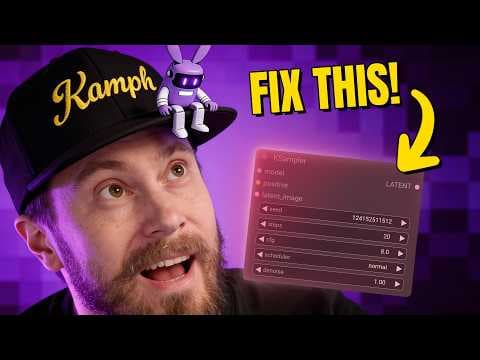
- K Sampler Advanced дозволяє розбивати процес генерації на етапи, використовуючи різні моделі або самплери.
- Inpaint Crop/Stitch дозволяє обрізати зображення за маскою, обробити фрагмент і зшити його назад без втрати контексту.
🟢 Можливості — що робити прямо зараз. 🔴 Загрози — чого боятись. Конкретно для бізнесу. 🟢 Бізнес може швидко інтегрувати ці вузли у свої креативні пайплайни, скорочуючи час на створення маркетингового візуалу та зменшуючи витрати на зовнішніх дизайнерів. 🔴 Загроза полягає в можливості порушення авторських прав при використанні AI‑згенерованого контенту без чіткої ліцензії, а також у нестабільності якості при масштабуванні без відповідного контролю.
Хоча вузли виглядають як прості надбудови, їх ефективність залежить від базової моделі дифузії – слабша модель не дасть якісного результату навіть з найкращими налаштуваннями. Крім того, деякі вузли (наприклад, Detail Demon) просто додають шум, що може призвести до артефактів, якщо не контролювати параметри дбало. Таким чином, реальна сила – у поєднанні вузлів з добре підібраною моделлю та досвідом оператора.
Опис відео▼
I'm going to show you nine advanced nodes in Comfy UI I use a lot. Whether you are a professional or a beginner, these are going to be useful for you. Oh, and do you know which days are the strongest? Saturdays and Sundays, of course. The rest are weak days. Let's start off with something real amazing. Look at this image. What if you could just increase the detail like this? Just look at this. We're just getting a bunch of more stuff into this. A lot of more details. Is it details you want? I don't know. That's up to you. But the point is more details. So what we got going on here is the detail demon sampler. And when you are generating you can connect it to your sampler. So you would need a sampler that takes a sampler input. Here I just have a Z image turbo workflow connected as a group here. So what you do is you connect this detail demon sampler and it's uh part of the detail demon custom node and then you connect the sampler K sampler select into it like oiler here and then you're setting your detail amount. I'm currently having it set to 0.8. It goes up and down. You can go crazy with it and that's going to increase sort of the noise in the image as you uh keep generating. You can change when it starts and when it ends in terms of the generation. So here, let me see. We have how many steps? Where's the steps? Eight steps. So it would probably start point two about uh let me see one or two steps in and then it would stop before the final one one or two steps there. Right. So this is really really cool. And the comparison here is with and without the detail demon. So this would be your generation. Here's uh the prompt which you can barely see. Let me make that bigger if you are interested in that. And we essentially have this anime style illustration. And what the detail demon does is it gives you more details. So you can see that coming in everywhere. We got some more stuff in the character here on the clothing in the background. We got more stuff all over the place. Really cool. really powerful. Next up, we got something called rife and it's frame interpolation and there are a bunch of nodes to choose from. I have selected three here. So, we have rife by uh VFI, we have uh rife by the frame interpolation node packs. So, the the names here are the node packs and these are the node names. Uh here we have fill nodes and what rife does it it interpolates between video frames. So, for example, if we have a video of this car, you can see it's stuttering forward like this. No bueno. This is not good at all. And you might have generations that look like this. Example, if you're doing one generation at 16 frames per second, you might want to increase your frames per second. So, what you do generally is you run a rife pass. Then it interpolates between the frames creating smoother motion. So, if you're using video at all, make sure that you try out some RIFE interpolation. Really simple, really powerful, and it doesn't take a lot of resources either. So, you don't need any fancy stuff. And this is actually been around for a long, long time. So, it's really nothing new in terms of AI magic going on here. Next up, we got reference latent. What is this? Well, most of the time you're sending a prompt through the conditioning here. So, we have a man and you're sending that into the positive prompt. Well, in some workflows, and some models, they can accept more data in the conditioning. So, you can send images into the reference latent. So what we're doing is we're loading an image and then we are encoding it into the latent space and sending that into the conditioning here through the reference latent. So this is a really powerful way to send image references into your prompts. Now not all models do this but uh a a lot of the new ones can. So this is the reference latent. You have probably seen it in a bunch of new workflows. really powerful, really cool. So that's essentially what it does. Sends an image with your prompts. There are a bunch of K samplers out there. This is the K sampler advanced. There are other versions. There's the K sampler advanced efficient, which essentially does the same thing. You can use the clown sample. Let me see. clown shark sampler. We can also do the same thing steps to run here. But the idea of the K sampler advanced is that you're adding started step and ended step. Why do we need this? Well, for example, you could chain these. So, you could start the generation here. Let's say that we're running 20 steps. And then you could end at 10 steps as an example. And here you could start this at step 10. You can keep this at 10,000 or or 999 or whatever. But just for education sake, I'm going to put this to 20. So what you see here is that the first case sampler runs the first 10 steps and the second case sampler starts at the 10 step and runs the last step. So each sampler runs 10 steps each. Now if you do this, you need to make sure that you enable return with leftover noise. So when the data here is sent over, there's actually some noise to work with. And also to make sure that when you end this, if this is your final sample, that you have this set as at disabled. Now, why would you want to do this? Well, let's say for example you have one model where you have amazing prompt understanding but the detail is kind of bad. So you can start your generation in the left one get perfect prompt understanding and then you can have a second sampler and the second model that's maybe great the details but not as good as prompt understanding because now the image is essentially half finished and now you can finish it up with a different model if you prefer. So, it's a very cool way to experiment with dividing your generation up into different parts. This is also fairly common when it comes to one workflows where you have a high and a low model. And this is essentially doing a similar thing. This is probably one of my most favorite known packs. You have inpaint crop and inpaint stitch. What does it do? Well, if you have an image, let's say you have an image like this, my beautiful face and beautiful hat, and then you have masked something out. So, what I've done is I have gone into the mask editor and then I have selected this part here and I'm sending the image and the mask into impaint crop. Now, what it does is it crops into my mask and the surrounding areas and I can select here the size. So I'm selecting 1024 x 1024 and I have extended a little bit outside of the mask by a factor of 1.2. So I'm essentially cropping in to this part. Now why would I want to do that? Well, if I want to inping that image back here, the inpainted image and it essentially gets copy pasted here back into the full image. Now, why are we doing this? Well, we do this so we can work with really big images. So this is a 2500 by 3,000 almost 400 pixel image and also so we can change parts in the image without changing everything. If you've been using Nanovan Pro or another image model that's multimodal, most of the time when you're asking for a small change everything in the image and this way you can crop in, inpaint, change whatever, stitch it back into the original and keep working. Now if you wanted to inpaint you would need a sampler and you would ask the sampler to do a specific change to this part of the image and that would be here. So this would you would build out your inpainting workflow but the main part is using an impaint crop and an impaint stitch. And I just love this node. It's amazing. This is one of the more simpler nodes that we're going to be touching upon today. So this is it's actually two nodes. It's the string multi-line and concatenate. And these are core comfy nodes. And the string multi-line is essentially just a way to input text as a string. So we have first part of text here and they have second part of text here. And then we're concatenating. We're putting them together. We're selecting a delimiter. So what's happening between string A and string B? And I've selected a dot and I've also selected a space as you can see here. So it's happening because you can see there's no dot here. There's no dot in the beginning here. It's actually adding the dot and the space. So first part of the text here, second part here. So why would you want to do this? Well, for example, if you want to build out advanced prompts coming from somewhere else, if you want to set specific file names or instructions for anything, this is a very powerful way to do that. So you can connect multiple of these together. Now in the core confi node there is only two strings that can be connected. Now you can chain multiple of these to have more but there are also other concatenate nodes. Uh here's one for example from b was node. So here you have four inputs. You can even clean white spaces remove white spaces. So there are a lot of text concatenate nodes but essentially it uh puts text together. They're also image concatenate nodes if you're into that. This next one here is the all-in-one ax prep-processor and it's from this notepack confl. Now what it does it takes an input and output and it lets you select a pre-processor from a huge list here. And what it does you can see here. So I have an input again. This is the same image we used before and we're now selecting different control net prep-processors. So here we have a depth pre-processor. Here for example, we have a line art. Down here we have a canny. There's even an open pose here. So this is a a great node to just have all these pre-processors available. There is one drawback and that is if you're loading for example Cany here which is a confore prep-processor you are not getting the threshold settings. So some of the more advanced settings of these prep-processors. So bear that in mind. These allin-one prep-processors are very easy to use but you might be missing some of the more important features if you need to do any changes. And now these control net prep-processes are used for control net workflows, videotovideo workflows. Anytime you need to uh have an input and change that into something else, very very powerful. Up next, we have the conditioning zero out. There's nothing going on here. There's no settings. It's just a node where you connect a conditioning and output the conditioning. So what does it do? Well, usually when you're running a case sample like this, you're having two prompt boxes, a positive and negative. Let's say you have a negative, bad, blurry, whatever negative. All right? And you would connect that to the negative. Now, some workflows don't accept the negative prompt, especially if you set your cfg to one, which essentially makes your negative prompt useless. But this process is still being done. Is it going to take a lot of your computer resources? No. But you can effectively cancel that out by using a conditioning zero out and connect that to the negative. Now what that does it it takes every anything that goes on in here in terms of conditioning and it just puts it to zero and then it sends out nothing into the negative. So while a very small increase it is a little bit beneficial to your system resources especially for the first run. It's also kind of convenient in your workflow just having it clean instead of having a bunch of prompt boxes that aren't being used. Thanks for watching. If you haven't seen my top 11 favorite nodes, you can check them out in the video here. As always, have a good one. See you.