OpenArt World Studio: ШІ генерує 3D-світи з фотографій
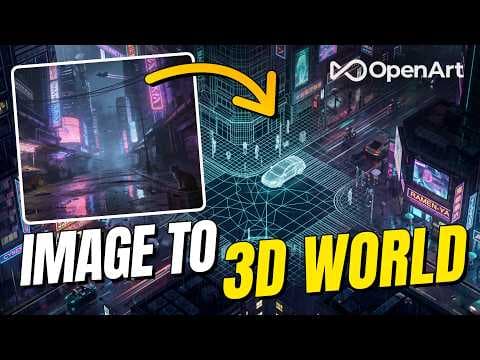
OpenArt World Studio використовує ШІ для створення 3D-середовищ на основі завантажених зображень, дозволяючи користувачам створювати світи для прогулянок і кадрувати знімки з персонажами та об'єктами, згенерованими ШІ. Інструмент орієнтований на розробників ігор, кінорежисерів і дизайнерів для прототипування середовища, концептуальної роботи та візуалізації.
Ключові тези
- Генерує 3D-світи із завантажених фотографій за допомогою ШІ
- Дозволяє користувачам кадрувати знімки та додавати згенерованих ШІ персонажів і об'єкти
- Підходить для розробників ігор, кінорежисерів і дизайнерів
Швидке створення 3D-прототипів локацій для ігор та фільмів • Візуалізація архітектурних проектів для замовників без навичок 3D-моделювання • Створення унікального контенту для маркетингових кампаній з мінімальними витратами
Згенеровані світи не є традиційними 3D-моделями з полігонами та мешами, а складаються з мільйонів кольорових плям, що впливає на можливості редагування. Для досягнення найкращих результатів рекомендується використовувати ширококутні об'єктиви та дотримуватися правил фотографування.
Опис відео▼
Take a bunch of images, send it in, and you get a full 3D scene that you can actually walk around and pull out a camera and take photos like you're standing right there. If you're a game dev, you can use it for environment prototyping. If you're a film director, you know, this is amazing for concept work and pre-vis or just getting a feel for locations. Let me just show you OpenArt's World Studio. In this video, we're going to put this thing through its paces with both real-life scenes and totally imaginary ones so you can see what's actually possible. We're also going to get into how to drop people and objects into your worlds to create some really nice-looking shots like placing professional models into a film scene. I'll walk you through the best practices for actually using this in a real workflow, and I'll talk about the limitations, too, because there are some things you should know going in. To create imaginary 3D worlds like what we just saw, just click the link in the description, and I'll take you straight there. Now, first thing we want to do is upload a photo. Just drag and drop it right into this window, right? And now you can generate words with just a prompt and no image at all if you want to, but I've gotten way better results when I give it something visual to work with. Now, it can be a real place or something completely made up. For now, I'm dropping in this cyberpunk street because I always love cyberpunk. I'm going to click this little icon here, which auto-generates a prompt based on my image, right? So, from here, you've got two options. Now, you can generate a panorama preview or go all in and create a full walkable world. Now, obviously, it's going to be a different amount. You're all using credits for this, so the panorama is 50 credits, and the world is 500 credits. So, let's start with the cheaper one, yeah? So, this takes about 30 seconds. And now we've got this neon street panorama that we can look around in. You'll notice there aren't any visible stitches or seams, at least what I can see right now. But here's the part that I think is actually really cool. Now, you can inpaint stuff in or out of this panorama, and it'll carry over into your 3D world later. So, just click on area edit here. You grab the brush, paint over whatever you want to change, and prompt what you want there instead. Let's get rid of this spaceship in the sky real quick and hit edit. And once you're happy with how everything looks, you click create 3D world. Now, this takes about 5 minutes, and after that, you've got your full 3D world that you can, you know, also download as a file if you want to so you're not locked into here, right? You move around using the keys shown on the overlay, and you can just explore. Go up, down, left, right, forward, change your your phone. It's kind of fun just flying around. But it's not just a toy. Now, you can actually use this to frame up shots like you're working with a real camera, except this camera takes prompts. And if you just want to jump in and play around real quick, there are some presets already available. And honestly, it's just a good time flying around those, too. All right, so now that we've got our 3D world, click on this camera icon, and it drops a UI overlay for you. You can see your frame boundaries, and down at the bottom, there's your prompt field, right? And it's not just a our prompt box, you can also adjust the lens field of view in millimeters just like you would with a real lens, and you can change the aspect ratio here, too. Now, first thing you want to do is find a good angle, right? So, I'm going to use this dolly on the right side and frame up this colorful street view on the left. I can start writing my prompt and even add a saved character if I want to. Now, I'll go with something like I'm adding in spaghetti next to a warm-lit deli counter. The man is wearing scruffy, worn, dark clothes with red and yellow accents. The scene is set in a dark neon cyber-styled city. Whatever. There are people in the background and a person working in in the deli. Now, besides writing your prompt, there's one convenient feature that you can use, and it's this character library, right? So, here OpenArt gives you the option to actually save your character presets, which you can create in in a similar fashion like these worlds. Now, you either prompt one up or feed it the images of your character, and and that's it. Now, we can actually use the character by clicking on character library and selecting your character. Kind of useful if consistency matters to you, which it should. Now, that should work for now, and we do have auto-enhance turned on, so the prompt gets tweaked a bit to work better with the model if you want. You can always turn that off. Now, hit take shot, and it pops up under this image tab where it's currently generating. Now, give it a moment, and here we have it, our image with that exact framing we already set up. Would I say this is a finished piece if I was working on a professional project? Probably not. But you know, that's that's all right. A lot of tools are exactly that. They're they're tools, and this one lets you frame shots inside an environment in a really, you know, intuitive way. From here, you could use this image to iterate on it further. You could, for example, take it into the edit tab here or run it through something like, you know, Blockade Labs or Nightcafe or SeaArt Dream to refine and and and, you know, make more shots. But as a starting point, this is really solid. I can frame multiple shots in the same scene, edit them to make them consistent, and now I have a full storyboard with, you know, fairly professional-looking images just waiting to be thrown into an image-to-video model. Or, well, if you're doing an animatic, sure. If you're doing something more, probably want to polish them a bit, right? Okay. So, we've done the imaginary world. Now, let's recreate an actual real-world location, kind of like what we did right at the beginning of the video. What you're going to need is four images of whatever you're trying to recreate. But how you photograph it actually matters a lot. You want to use a wide-angle lens, and most phones have one these days. Phones have too many lenses these days. What's up with that? Put yourself somewhere in the middle of the room or whatever you're you're photographing, and from there, take one photo straight ahead, then rotate 90° to the right, take another, and keep going until you got the four angles like front, right, back, left. And this is fairly important. Don't just take random photos from different spots. Stay in roughly the same position, or not roughly, at least stay in the same position the whole time, at least if you you want a good result, right? These are our four images that we'll drop into OpenArt Worlds, and we don't even need to write a prompt for this one. Once the images are in, just make sure the labels match up correctly, front, right, back, left, you know, you get the idea. Then all that's left is to hit create world, and after a few minutes, you've got your real-world location recreated in 3D. And yeah, you can also just do just use one image if you want, but that means the AI has to figure out the entire world on its own, so it's not going to be a perfect recreation. You're just going to get that one angle, and then, you know, the back side is just going to be made up. That said, don't let that stop you from trying it. Sometimes AI surprises you and gives you something even more interesting than, you know, what you had in mind, but it's not going to be exactly what you were looking for, maybe. Okay. The world we recreated here isn't perfect, and I want to be up front about that. With only four photos, there are supposed to be I just didn't have enough info to work with. But I mean, honestly, to be fair, for what we're going for, it works pretty okay. And I want to explain what you're actually looking at here, right? Because this isn't a traditional 3D model. There's no polygons, no meshes. This is something called a Gaussian splat, and the easiest way to think about it is, you know, imagine millions of tiny soft blobs of color floating in in this 3D space. Now, each one has a position, size, color, and opacity, and when you pack enough of them together, they overlap and blend, and your brain just reads it as a solid scene. The trade-off is you can't really edit it like a normal 3D model. You can't grab a wall and move it. It's more like a 3D photograph than a 3D model. But for visualization and concept work, it's super powerful. And yeah, you can bring this into Unreal, Unity, or even Blender with a community add-on. Now, what I think is really exciting about a tool like this is that it's useful for so many different types of people. Like if you're a game dev, you can use it for environment prototyping. If you're a film director, you know, this is amazing for concept work and pre-vis or just getting a feel for locations. You know, if you're an architect or designer of some sort, so you can imagine doing walk-throughs of actual buildings. So, there's a lot of stuff that you can do. So, if you want to try generating your own world, you have the link in the description below. Go check it out. That's it for now. I'll catch you in the next one. Bye-bye.