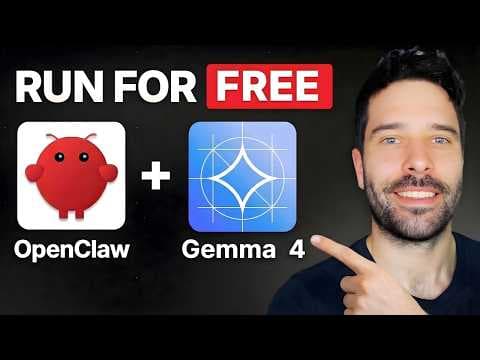
Gemma 4 + SearXNG = 100% безкоштовний та приватний OpenClaw: інструкція з розгортання
Відеоблогер продемонстрував, як запустити OpenClaw локально з моделями Gemma 4 та пошуковиком SearXNG, щоб отримати повністю приватного AI-агента. Це дозволяє обробляти чутливі запити без ризику витоку даних, що критично для компаній з високими вимогами до безпеки.
Ключові тези
- Локальні моделі Gemma 4 обробляють текст, зображення, відео та аудіо без відправки даних на зовнішні сервери.
- SearXNG забезпечує безкоштовний та приватний веб-пошук, інтегрований в OpenClaw.
- Olama спрощує встановлення та керування моделями, а Docker – розгортання SearXNG.
Повний контроль над даними — compliance для фінансових та медичних установ • Відсутність плати за API — економія для компаній з великим обсягом обробки даних • Можливість кастомізації та навчання моделей під власні потреби
Більшість користувачів звикли до хмарних сервісів, тому перехід на локальне розгортання може вимагати додаткових зусиль та знань. Важливо враховувати, що продуктивність локальних моделей може бути нижчою, ніж у хмарних аналогів.
Опис відео▼
Hello legends. In this video, I'm going to show you how to run Open Claw completely for free and 100% privately by using the new Gemma 4 models. I'll start off by explaining what each of those models are and why they're actually a good fit for OpenClaw. I'll then take you through which tools you need to install on your computer. I'll show you how to download the models and then plug those models directly into your OpenClaw and get started using them. And then finally, a lot of questions I get are around how do you do free web search? So, I actually found a way to do web search completely for free, 100% private as well, where no information leaves your machine, and I'll show you how to do that in this video as well. So, the Gemma 4 models are actually Google's models. We have the Gemini 3, which you may be familiar with. It's the paid AI service from Google. Fantastic AI model. Uh Google also makes Nano Banana, which is the image generation, another fantastic image generation model. And they recently released four new open- source models. This means that you can download those models directly onto your computer or they have small enough models for your mobile phone and then you have free AI completely on your device. So Google released two models that are small enough to fit on a mobile phone, the E2B and the E4B. These models can process text, image, video, and audio. So you could have it on your phone, take a video of something, and then ask questions and get answers about it. And they released two bigger models which fit onto your computer, uh the 26B and the 31B. These can only process text and image, not audio and not video. So I actually ran this small E4B model for a couple of days for my open claw and was very impressed with its ability to do tool calling. So the ability for a model to do agentic tool calling is very important for openclaw because you might have a request that says hey find me the latest AI news build it into report and then add it to my ClickUp or send it via email to you know the people on my team. So to service that request, your model has to go away and do a web search, summarize the results, create a report, attach it into ClickUp, attach it to your Gmail, hit send, and then finally come back to you five steps later and say, "Hey, I've completed your task." When I ran the E4B model, which is super small, again, made for your mobile phone, I was very impressed with its ability to actually go off and do these tasks for me. Where previously, if I ran a small model, it would buckle halfway through, like two steps in, and then it wouldn't respond, and I'd have to go and, you know, tap it on the shoulder and say, "Hey, what's going on? can you complete this task? So, even if you've got a really small device, I wouldn't be shy to actually use some of these smaller models and just see what happens. Now, we got a couple different ways to download these models onto our device and then run them with OpenClaw. We're going to be using Oola Lama today. Now, we'll be using Olama because it's very simple for us to use. Very easy for us to browse the models, download them to our computer, and also has a native integration with OpenClaw, which means you don't need to do any custom coding or complicated configuration. You just download the model and then set it up with Olama's native integration. So, the first thing we need to do is download and install Oola Lama on our device. We're just going to copy this and we'll open up a new terminal. We'll paste in that command and hit enter. And now we just installed O Lama on our computer. Next thing for us to do is go into this models tab. In the models tab, we can browse pretty much every open- source model that's available to us. But really, what we want to do is go into Gemma 4. And then we'll scroll down a little bit and then we can view all the different models. So, as we saw before, these two models are built for the mobile phone, the E2B and the E4B. Then these two models are built for the desktop. So the 26 and a 31B. I tested this one out on my uh open claw instance. It was working pretty well. And with the 128k context window, this was also very good for my open claw. My conversations never really got too intense anyway uh for my testing, but it was really good. And now I'm using this as my daily driver, the 26B uh with a 256k context window. So I'm actually running the 18 gig model on my Mac Studio, which has got 512 gigs of RAM, and that's perfectly fine there. But on my 24 gig MacBook Pro, I'm running this comfortably as well. Now, for this video, I'm actually going to be running this. We're going to do some testing as well and just see if this works because if you've got a 16 gig MacBook Pro, this 7 gig version will be able to fit on that, including the additional context that you accumulate during a conversation. So, this is a pretty interesting model for us to look at. So, let's go ahead and install the Gemma 4B. I'm just going to copy this, go back into our terminal, and I'm going to go Lama pull, and then paste in that model name. I'm going to hit enter and now we'll be downloading that model onto our device. Now, while we'll wait for that to download, if you're sitting here thinking, "Ah man, my device is actually super small. I don't even have enough RAM to be able to run one of these AI models or I'm on a VPS and I can't actually download any uh model onto my VPS. It's not possible." Well, Olama also has a cloud offering, which means you can pay the $20 a month plan. And they state that it should be enough to actually run all your OpenCore usage across that month. So, if you're using it every day, you'll be able to use models like Kim K2.5, GLM5, or Miniax M2.7. These are massive models that run on the cloud. And for 20 bucks a month, I think this is an interesting deal for you to look at. For example, if you're not able to install any of these local models onto your device, you can use the cloud version of the 31B, which again is a 20 gig version with the full 256K context just by using their cloud instance. So, in this video, I'll show you how to do both setups for cloud and for local. So, now that we have our model pulled, another Olama command you can run to see all the models you have on your computer is to do Olama list. Hit enter. And you can see here I've got the Lama 3.2 that I downloaded ages ago. I've got the Gemma E4B which is 9.6 gigs. And now we have the Gemma E2B which is 7.2 gigs. So, you can actually download a bunch of different models into your device and manage them completely with O Lama. And now from here, I'm just going to assume that you already have OpenCore running on your device. So you just want to plug in this open source model directly into your existing instance. So for that we're just going to go open claw space configure. And actually these steps will be very similar to if you're starting off with a brand new openclaw instance like for the very first time. So this is going to be very similar for me. I'm going to go to uh I'm going to keep it as local and I want to go down to model because I want to now plug in this new model that I downloaded. So I'm going to hit enter. I'm going to go all the way down to choose Olama. Hit enter again. And if this is the first time that you're configuring Olama, because we've downloaded it already, we have the model installed on our computer. This base URL will show exactly what it needs to be for your instance. So, I'm just going to hit enter. There's nothing special for us to set there. And this is where you can actually set the cloud and local version or just the local version. So, I was just saying you could do the cloud account, 20 bucks a month. If you have like a VPS and you just want really good models for really cheap, you can follow through with the cloud plus local configuration. But for us, I'm just going to keep going with local. And now we can see all the models that we can plug into our open claw. So I've already got the E4B plugged in. It's highlighted in green. So I'm just going to press up. I'm going to hit the space bar and I'm going to select the E2B model as well. Now I'm going to hit enter. And now I don't want to configure anything else. So I'm just going to go all the way to the bottom to hit continue and hit enter. And now we've just plugged in the model. And for best practice, I'm just going to go open claw gateway restart and hit enter. So we've just restarted the gateway. I like to do this every time I change one of the settings just to make sure that the setting actually flushes and pushes through into the system. And then over in our open claw instance, I can see our drop down for our models. We have the E4B and the E2B that we just downloaded and we plugged in. So I'm just going to send our first message. Now for the very first message you send after a prolonged period of time of not chatting with your OpenCore, it might take 10 or 20 seconds depending on your hardware to get that first reply. And that's because we're actually loading up the model into our RAM. So we can actually generate these responses. But then typically after the first response, if you keep having that warm conversation, the responses should be a little bit faster. Let's test this out. How are you? There we go. So you can see that the first message took us maybe 10 20 seconds and that second one cuz it's already up and running, it was a little bit faster for us. So at this stage, I would say go off and test this model for your instance. ask it to read your files, edit your files, do your web search, to build things for you, and just see how it functions. The latest version of OpenClaw is actually built out better and better. The backend prompts, the backend structure of like how it does tool calling is much better. So, these smaller models actually run a lot better. But the next thing I want to get us set up with is the web search. So, right now, if I say find me the latest AI news, we're actually going to get an error that we don't have the web search tool. Well, we've got nothing configured. I haven't actually plugged in the web search tool, be it a paid service or a free service. Now, to keep going with our setup of being 100% locally hosted and 100% private, I don't want to use a paid service because I actually want to keep all my information completely on my device. So, uh, as of recently, there's a new web search provider called Search or Seir XNG. This is a web search tool that you can run self-hosted completely on your computer and it has a native integration as we can see directly into openclaw. Now to get this set up the first tool that you need to get is docker. So just go to docker.com and then just download it for your desktop. So I'm on Apple silicon so I would just download this but you just download the version that you need. So after it downloads just get it installed onto your computer. Then back in the open claw documentation to get this set up. Since we have docker already we can now just copy this command. We can go back into our terminal. We just paste in the command over here. And this will actually go away and download and install search XNG directly within your Docker. Since I've already got it installed, we didn't see any install scripts on my terminal. Now, the next thing for us to do is either to go into the open claw configure just like before with the OAMA that we did and set it up that way or we can just copy this command, go back into our terminal, hit enter, and then we've just set up search XNG in the back end to work with openclaw. Now, there is one final thing and we need to be mindful of is that when we're setting up search XNG uh by default, it's most likely going to show that it's using the HTML format for scraping websites, but OpenClaw uses the JSON format. Now a little hack that I do is if I don't actually want to go and do all this setting configuration myself be it in openclaw or in docker or whatever else I'm running I would actually spin up a clawed code instance in the terminal I'd say hey read my openclaw configuration read my docker configuration and paste in the URL and say hey can you install this and fully configure it and test it to make sure it's working now that is a really convenient and fast way to actually get these things set up but if you don't use claude or codecs I'm just going to show you the manual way as well so we're just going to open up docker and we're going to find that search XNG image that we just installed. We're going to go into these three buttons over here and we're going to go into view files. Once we're in view files, we're going to go to the folder called etc. drop down, scroll down a little bit until we see the folder called search XNG and then go into this settings.yaml. We're just going to click on it, right click, and then go to edit file. And now in the bottom section over here, I'm just going to click on Ctrl+F and I'm going to type in the word formats with an S. I'm going to click on next. And here we can see different formats that we can use for search XNG. Like I mentioned before, this is already set to HTML. So we need to get JSON into here as well. We're just going to go to new line, put a little dash, and go JS O N. Once this is done, going to go into here and click save. And now we would just want to restart this container. So basically making the setting flush through the entire system. So now let's go back into our open claw and hopefully we've done everything correctly. And I'm just going to ask again to find me the latest AI news from today. So the initial response showed that it wasn't able to use the web search tool and I think it was because I just went too quickly from when I reset the docker container to actually coming up and actually asking the question over here. So I asked a couple of more times to make sure I was getting actual real news from the internet like as of today and I asked about claude code and over here we had basically an update about how cloud code banned uh usage in third party tools like openclaw. So I actually picked this up. So we can see now that we have a locally hosted model running on our open claw as well as a locally hosted web search tool. So this is all 100% free. There's no rate limits here and all the information never leaves your device. All right guys, thank you very much for watching. If you want to see more videos about running open- source models locally for OpenClaw or for coding, uh please subscribe to my channel and drop a comment below. I actually have a 512 gig MacBook Studio so I can run a bunch of different experiments and actually create videos about that too. So just let me know what you want to see. All right, thank you very much and I'll see you in the next
Ще з цього каналу
Claude Managed Agents Full Tutorial: How to Setup Your First AI Agent
3 місяці тому
Hermes Agent Full Setup Tutorial: How to Setup Your First AI Agent (Gemma 4)
3 місяці тому
Claude Cowork Projects Is Here (And It's Changing How I Work)
4 місяці тому
The Easiest Way To Make Claude Cowork Skills #aiagents #techtok #claude
4 місяці тому