Google AI Edge Gallery: локальний запуск LLM на телефоні — конфіденційність та безкоштовність
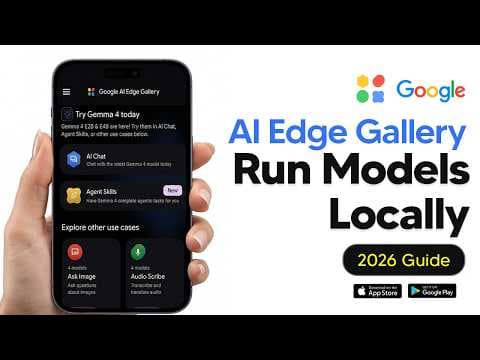
Google випустила AI Edge Gallery, що дозволяє запускати LLM локально на Android та iOS. Це знімає ризики витоку даних у чужу хмару, але потребує iPhone 15 Pro або Android з 8+ ГБ RAM.
Ключові тези
- Локальний запуск LLM на пристрої без передачі даних на сервери Google
- Підтримка Android та iOS без обмежень по реєстрації чи очікуванню
- Використання різних моделей, включаючи Gemma, з урахуванням апаратних вимог
Запуск LLM без підключення до Інтернету • Конфіденційність даних, оскільки вони не передаються на сервери Google • Можливість використання різних моделей, включаючи Gemma
Продуктивність моделей залежить від апаратних можливостей пристрою. Старіші телефони можуть не підтримувати великі моделі, такі як Gemma 4.
Опис відео▼
So, in today's video, I'll be showing you guys how you can use Google's AI Edge Gallery, the place where you run models on your device, private, free, and locally. So, right now, you can see that I am in the App Store and essentially all you'll need to do is just download this. There is no weight list. There is no specific things you need. You don't need a developer account. It is pretty simple and easy to download. So, just download this and once that's done, you can then just open this like I have here. So once you're able to open the app and do remember that this is available on Android and iOS and this is not like some weight list thing. So you'll be pretty fine to be able to download this. Now once you download this it is a little bit confusing because you do see a lot of stuff but let's actually walk through what each of these means. So currently with the Google AI edge gallery essentially this is a place where you can discover new models from the Google family, download them on your device and actually run them locally like you would run a local LLM model on your desktop PC. And so with all of the different buttons that you have here, each one of these different buttons, essentially what they do is make the AI do something in a specific way. So for example, the ask image, this basically puts it into image mode. Audioscribe, that's going to put it into audio mode. And each one is different. Now, if you're a beginner here, the first thing you'll notice, we're just going to go from top to bottom, is this AI chat feature. So this is probably going to be the most common feature that most people use. If you click the AI chat feature, you can see that it essentially shows you which models are available. So now quickly before we do get into this, if your Android phone has 8 GB of RAM or more and was released in the last few years, you can probably run the Gemma 4 models. If it has 12 GB of RAM, you can probably handle the models too. But do note that older models, older phones with 4 to 6 GB of RAM, probably shouldn't expect to run Gemma 4 that well. So if you're wondering about if you can run this on iPhones, too. If we're looking at iPhones, the iPhone 15 Pro and above, those will be able to run it pretty easily. Of course, as well, if you're running this on an iPad with an M series chip, especially this 8 to 16 GB RAM models, those will also work. The borderline where you don't really want to be, you know, doing too much is the iPhone 13/14 with a standard 4 to 6 GB of RAM. Those are okay for the very, very tiny Gemma variants, which we'll get into. But those are not really great for bigger Gemma 4 models. So, I'd recommend not anything older than an iPhone 12 or devices with 3 GB of RAM or less. it's best to have 8 GB of RAM or more. So, one of the first things we're going to talk about is the AI chat. So, when you step into the AI chat, this is essentially where you can see how you can talk to an ondevice large language model. Now, what it essentially will do here is give you the ability to download multiple different variants of multiple different models. Now, the only problem is is that as a beginner when you come into this, you'll realize that these models don't specifically state what is different about them and every single model is essentially different in multiple different ways. Now, it usually will have a best overall model there, and you can go ahead and just download that. So, for me, I've already got this downloaded, but if I wanted to download a different model, I can just click the download button, and you can see it's immediately going to start downloading. It doesn't really take that long. It's only a few gigabytes, but that is going to be how you download those models. Now, you can download really as many as you like, as many as your device can handle, but it really is up to you on the model you want. I would say that the larger the model size is, the more reasoning abilities slashcapabilities that the model is going to have. And of course, the smaller the model is, you can see down here you've got Gemma 3 1 billion parameters that is going to be a model that is going to be easily run on the older devices that we mentioned earlier. So please do understand that you know the larger the size of the model of course it's going to reach into the territory where you do need a newer phone to run that. So once you've downloaded a model you'll be able to essentially go into a chat. You can either click the try it button here or you can just if we go back here, you can just simply hit that arrow button, that blue arrow, and then you can go in. When you first enter a chat model, you're essentially going to have to wait for it to initialize the model. It's essentially just booting up everything. This should take around 10 to 15 seconds and then you'll essentially be able to talk to the model. If you want to swap to a model, just hit the drop down and then you'll be able to drop down to a different model rather than going back and forth, back and forth, and then it willize the model and then you'll be able to jump in. Now essentially this is just a chat interface so you can say hello how are you and usually it will just give you a response but what I've done here is I've actually changed the settings so that if you hit the top right okay and if you go to the top right you can see that I've actually enabled thinking by default it doesn't actually have this on and thinking of course as you guys know is going to just enable the model to think longer and it's usually reserved for more of those tasks where you have a lot more multi-step reasoning that you need to do. So, for example, if I say hello here, hello again, you can see it's just going to respond absolutely instantly. So, you don't need thinking on if you're just doing some super basic tasks, but if you want to get more reasoning out of model, you can enable thinking on. Now, of course, these are the settings here. And so, temperature, for those of you who didn't know, this essentially controls how random the model is. The closer it is to the middle value is where it's going to be balanced, and this is going to be good for chat. Now, if you decide to move this up a bit, it's going to be a bit more random. is going to be creative and it's essentially going to talk a bit more nonsense. If you, you know, get it a bit lower, it's going to be cold, safe, repetitive, deterministic, and you know, in the middle is kind of where you want that for, you know, most of your tasks. So, top K being 64 means only look at the top K best next words. So, if K equals 50 here, the model is only going to choose from the, you know, 50 most likely tokens, and it's going to ignore the rest, including very weird ones. And if you have a smaller K, it's safer, but it's a bit boring. And if you have a bigger K, it's essentially more variety. Now, top P is essentially how safe the choice is. Low is going to be, you know, super safe and focused. The higher this is, it's going to be, you know, more random. And so, this default that we have here is pretty good. And I would say that most of these settings you don't really need to change unless you're a developer. So, I'm just going to go ahead and cancel that. I'm going to leave it by default. And by default, those are the values that it does have. Now, if you're wondering on whether you should switch this to the CPU or GPU, I would argue that the CPU is the brain of the phone. It does work. you can switch it, but this is pretty slow and it's going to use more battery and the GPU is essentially faster for AI. So, I would just stick to GPU because that option is always going to be better. So, like I said, let's not mess around with those settings. And you can see as you know, once you update those configs, that's there. And I could say what is the best business to start in 2026. And this is just basically where or 2926. I don't know why I managed to enter that area, but you can see right here that the model does work. And remember guys, this is private. This is of course going to be all on device and that means the data is not going up to anyone's servers. This is all just staying on my phone. Now, if you want to see your chat history, all the previous conversations you've had. Now, the only bad thing about this is that you don't actually have your history stored. So, if you do want to have your chat history, it's not actually stored here. The only thing that they do store, which is a bit crazy, is your text input history. So, you can see these are only the buttons that have actually input. So, if there's something you input before, you can just input it again, or you can just go to your history, delete that, and it'll be done. So you don't have have any actual chat history. Now if we go back here, this is where things start to get a little bit more interesting. So let's say we've downloaded the models that we do want. Let's go to the other section which is the agent skills. So right underneath AI chat is essentially agent skills. Now for most people, you probably do know what this is. This is essentially where you can use a preset determined way to prompt with the model in order for it to do an instruction. So if I click try it here, you can essentially see that agent skills are basically a specific way for the model to reason. Once again, you do have these settings which you can change, but of course, like I said, I wouldn't mess with them. Of course, you can also view the system prompt here, but like I said, I wouldn't mess with that at all. Now, you can see right here that essentially what this is able to do is it's able to do things that you would specifically do beforehand. And of course, this might be different on Android and iPhone because each phone has different capabilities. Now, a lot of these ones here, if you just scroll through them, these ones are essentially pretty basic. And a lot of them essentially will have the ability to, you know, use the vision capabilities because this model actually does have vision capabilities. So if you, you know, put text spinner, it'll actually pop up with a camera and it'll actually be very interactive cuz this model is actually pretty good and it's able to interact in real time. But for example, this one right here, we can generate a QR code for anything. And you can see right here, it's generating a QR code for this. I'm going to say generate a QR code. Generate a QR code for my YouTube channel called the AI Grid. And then we're going to enter that there. You can see the model is is on there. And you can see it says the QR code has been generated. So essentially all you're doing here when you're using these agent skills, these are just very basic skills that you can have and the default ones are not really good. I would say that if you're someone that's working and you want to, you know, use your existing like Claude skills, you can import them in. So if you go to skills and then you click to plus, you can essentially load a skill from a URL or import a local skill. Now essentially if you've used skills before, you'll know that it's really good for, you know, prompting in a certain way. So the kind of skills that I have is that if I'm making a video script in a specific way, I can say I want you to have a long form video script for specifically documentaries. So what I would do in that scenario is I would enable that skill and then when I prompt it to say okay, make me a video essay script. If I actually added that skill on, it would make that video script in that specific essay style. And that's exactly what it is. Now that is the super super basic version of it. If you want to learn more about agentic skills, if you click create your own, then it will show you this GitHub page here where it has all of this information regarding the Google skills. And you can see that, you know, at a high level, a skill is basically just something that contains essential metadata and step-by-step instructions. And then the LLM just reviews those instructions before responding. And so here's an example of a texton skill file. So you can see right here it says the fitness coach and if you want it to be like a, you know, a workout, if you want to talk specific workouts, then it's going to talk in that specific way. And this is super useful, you know, for specific things. I'm pretty sure if you've used skills before, you know exactly what I'm talking about. And the other stuff is honestly pretty self-explanatory. When you go to image model, you can essentially just use the same model here. You can download these specific, you know, ones that are, you know, specific for image. So, if we click try here, what you can do is you can click the plus button. Then you can add any image and you can ask it about it because the model is multimodal. So, I'm going to ask it this picture of a shoe. I'm going to say what do you see? And so, the model is probably going to show me exactly what it sees. It says I see yada yada yada. It says I see everything and yeah you guys can see here that the you know model on device isn't hallucinating as much because this is a really really good model. It gives you all of the information and this is of course super good. Maybe you are out and you have no internet and you just take a picture of something which you can if you click plus here you'll be able to take a camera photo or just use your photo library and you'll be able to essentially ask the model on device what it sees. Now of course what you can do again is you can scroll down to audiocribe. So this is once again remember it's a multimodal model. you here's you can record an audio, you can pick a wave file. Now, if we do the audio, the audio one is a little bit weird, but this is actually how you use it. So, what you want to do is you essentially get one file and that is basically it. And then you have to restart the conversation and then you have to put that prompt immediately after. So, let me show you guys exactly how you do it. So, click plus. Then you can either upload it or you can record an audio. So, here I'm going to record an audio and then I'm going to say, "Hey Google Gemini, I actually ate 10 donuts today and I feel stuffed." Then I'm going to say what was said. And then I'm going to enter that. And then you can see it says, "Hey, I'm sorry to hear you're feeling stuffed. It sounds like you had a lot of donuts." So you can hear see right here that it it perfectly transcribed what I've said. But now I'm not actually, you know, able to add another clip. I'm just able to say, "Uh haha, that's so funny." And I'm able to continue the conversation. Now, of course, if you want to put another piece of audio in, we actually do have to do. Unfortunately, at the moment, I'm not sure if they're going to change this. Click plus. And then you can reset that and then you'll be able to input something else and you'll be able to go again. If you just put the audio in, for some reason it doesn't work. So I'm going to show you. Hey Gemini, what is going on? I think I had like 13 cookies today. I'm feeling stuffed. And then let's say you just put that in. It won't always transcribe it perfectly. So it's best to just add a little bit of text there. Now, of course, they might change this in the future, but that is just what is currently, you know, there. So now we're going to go on to the second feature, which is mobile action. So if we download this, this is something that's experimental. So, we're just going to download this and I'm going to show you guys what to do. So, now this is downloaded. We're going to click allow here. And so, essentially what this is able to do is control your device with many different commands. So, here I'm going to just say uh and you probably won't be able to see this, but I'm going to show you guys. Hey, Gemini, can you turn on my flashlight for me, please? And so, I mean, I wish I could show you this, but my flashlight is actually on. If I scroll this down, you can see that, well, you can't actually see the flashlight actually is is on, but the flashlight is actually now on. And this is pretty cool. So, what I can say now is, hey, Janai, can you turn off the flashlight? And so the flashlight has now been turned off. So this is something that is super super simple because maybe you're going to be able to send text like this in the future. I think this is an early insight to what things are going to be like in the future. And this is something that of course is experimental. Don't expect this to work completely 100%. And yeah, that's what I would say for the mobile actions. The last thing here that you don't really need to care about is Tiny Garden, which is a game um and that's just a game that you can play. So I think um you know as well another thing that I forgot to mention is Prompts Lab. So here once again it's kind of like agent skills but this is just basically preset things that where you can just input your text. So I would say if you're on the web or you're about come to the prompt labe your text here and then you're going to be able to you know get a response. So here you can see it summarize text. It rewrites the tone into whatever you want. You know casual, friendly, polite, enthusiastic. Maybe you want to send an email. You don't want to log into chat GBT. You can see code snippet here. Summarize your text. It's completely up to you however you want to do this. And you can see it's got an example right here. You're able to essentially get the response and the performance and how you know quick that is. So this is something that is you know useful if you're going to be using this all the time. And so yeah, this one is pretty simple. So, I think this studio is pretty good for running devices on your local hardware, especially when you're just on the phone, on the move, on about, and you want to have something that is always Dap.