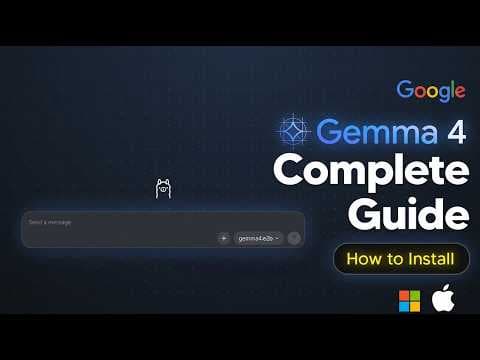
Інструкція: локальний запуск Google Gemma 4 через Ollama – покрокова установка
Google Gemma 4 тепер доступна для локального запуску, що дозволяє використовувати її безкоштовно. Для великих моделей потрібна потужна відеокарта, інакше продуктивність буде низькою, але це дешевше, ніж API-сервіси.
Ключові тези
- Gemma 4 – це сімейство відкритих моделей Google, випущене під ліцензією Apache 2.0.
- Модель доступна в розмірах від 2B до 31B параметрів.
- Вона може обробляти зображення та відео.
Gemma 4 безкоштовна для локального використання, на відміну від платних API, таких як OpenAI.
Для великих моделей (31B) потрібна дорога відеокарта (RTX 4090 або краще). Оренда GPU може бути дешевшою за API, але додає складності в інфраструктуру.
Опис відео▼
So, Google Gemma 4 is here, and this is a genuine surprise because this is Google's most capable open model family to date, and this was released yesterday under an Apache 2.0 license. Now, in this video, I'll be showing you guys exactly how you can install this model and run it locally for free. So, that is something that I think a lot of people would want to do because this model is remarkably small in terms of the parameters. And due to its size, you're able to actually run this on pretty standard GPUs. I mean, it's built on the same architecture as Gemini 3. Comes in four sizes, 2B and 4B. And it's essentially an effective model for phones and edge devices. It's got a 26 billion parameter mixture of experts model that only activates 3.8 billion parameters inference and 31 billion parameter dense model that currently ranks three among all open models on Arena AI, beating out models that are 20 times its size, which is pretty crazy. You can remember this model has multi-step planning. It it also processes images and videos. And so this is pretty crazy, a very capable model. And I think it's time I show you guys how we install this. So first I'm going to show you guys what Oama is. So there's many different ways to download OAM, but for most beginners it's very easy to just, you know, click this download button here. Download for Windows. If you want to download it for Mac, you can download it as there as well. Also for Linux, it's really, really easy. So let me just go ahead and run this launcher right here. And so let's continue with the installation. It's just going to extract some files. And so now it's basically just going to install on your device. And so when you actually go on this, you'll see this menu here. But of course, if you're a beginner and you just want to, you know, have something super super simple, go to new chat, then go down to here, and you can literally just type in Gemma 4. Now, Gemma 4 currently isn't there at the moment, but it probably will be there in a very short amount of time. But of course, this is where you essentially will be able to download it. You'll be able to just click the download button there and then you'll be able to see it as it pops up and you'll be able to interact with the model. And of course, if you actually want to use Gemma for after downloading OAM, this will show you how to just make sure you open up your terminal and then follow these steps. It is super simple. Now, all you would need to do is basically just type in the command Olama run whichever specific model it is. Of course, in this case, you can see that it is Gemma 4. So, of course, that would be the one that we would want to run. But you do have to remember that with this model, there are different kinds. So depending on your graphics card, you may not actually have enough VRAM to be able to run the card. And so with this list of the fulls size GMA models, you need to be a little bit careful because the E2B one at 7.2 gigs, that is pretty, you know, easy for most of you with a modern GPU. If you've got a 3060, a 4060, anything with 12 gigs or more, you're pretty good. And also, if you've got the Gemma 4 latest, which is the standard model, that will work. And even the Gemma 4 E4B, those will work. But the problem does come, and this is where most of you are going to hit a wall. Unless you've got an RTX 4090 or anything with 24 plus gigs of RAM like a 5090, then those models won't fit on your GPU and they'll fall back to your CPU and they'll run pretty slowly. So, if you don't have VRAM, don't worry. You basically just have to rent a GPU. It costs a few cents for an hour, which is a lot cheaper than those, you know, large API subscriptions to API services like others in the cloud. And so, you actually don't need to go out and buy some crazy crazy GPU. It's really really simple, which is what I'm going to do cuz I don't have enough VRAM to actually run these models that I do want to run. So, I'm going to go ahead and run those on a virtual system. So, now considering we just spoke about the VRAMm issue, what you want to do is you want to just, you know, open up your terminal. If you press the Windows key, type cmd, and then you hit enter, this will pop up. And then essentially, if you're trying to check your VRAM, you just type in Nvidia- Smi and then hit enter. And then it should show you what GPU you have. So, you can see right here I've got my Nvidia RTX 5070Ti and you can see here it actually says in the middle that 6 gig is being used out of 16 available GB. So, I know that I have 16 GB of VRAM so I can't run anything that is over that amount. Of course, I don't even want to be near to that amount because I don't want to, you know, stress the GPU. If you open up task manager and then you go down to like the GPU tab, you'll actually be able to see it much more clearly here. So, task manager just control altdelete. Then you see task manager and you'll be able to see how much GPU you actually do have. So depending on your system, I know for Mac it is a little bit different, but depending on your system, you may have enough, you may have a little, you may not have enough. So yeah, just make sure that you guys check this out before you install this because you don't want to run it. You don't want to mess up your system. You don't want it to be super slow. Just do this before, of course, you install. But I'll show you guys what it looks right now. Like let's say you wanted the small model here. You just type in that command, run E42B, hit enter, and then it is going to pull that in. It's going to download absolutely everything, and we just have to wait. And so now you can see that I've literally just installed this. When you go back to OAMA, and you go down here, you'll actually see this model pop up, Gemma 42E. And so if I want to talk to the model, I can say hello. And this is actually running completely locally. So this is running actually on my GPU. So we're just going to wait. And so yeah, you can see it said hello, how can I help you today? And I could say who developed to you. So uh it it will take a while for the first time to load. It will actually load in the VRAMm. But of course you can see here the idea here is that you have a model that is pretty decent and it's able to run locally. So let's say for example you want to do some image. And so now I'm going to do is I'm going to test the image capabilities. I've actually put in an image of you know a McLaren here and I'm going to say what does the image show? And so let's input that here. If you're wondering what the image is, it's actually a McLaren. So let's actually see if it's able to see this. You can see it's actually thinking quite a lot here. And it says it shows a bright yellow sports car on a street scene with public transport. There's architecture and storefronts. This is actually very very good. And so this was the actual original image that I just pasted in there. Um and yeah, this is actually pretty good. So I think so far you can see that for a local model, this is pretty crazy. And for our next test, we're actually going to see if this model can actually read the license plate here because of course that's something that certain models can do. And so you can see right here, it actually thought for 7.5 seconds and it says, "Yes, I can read the license plate on the yellow sports car. The license plates read LC18 MCL, which is pretty crazy if you ask me." So you can see here that you have your own local model. Of course, if you want, you can install more. You know, if you're using Olama, you are able to literally just install more models. Of course, for these bigger models, as we've said, you do need a different GPU. So I will be, you know, showing you guys exactly how you can run those for basically pennies using a GPU provider. Of course, if you just have your own GPU, then this is going to be completely fine. But for me, I don't actually have a GPU, that that's good. So, let's go ahead and run this in a dedicated server. So, what I'm going to do now is just go ahead and check that this Nvidia graphics card is working. So, I'm just going to input this command, Nvidia SMI. And then, luckily, I can see the 5090 there, which is pretty good. Next, we're going to run the second command, which is serve, and which I'm just going to click enter. And then, this is going to load up. It's basically just going to start Ola. And if you are wondering, I will have an entire chat conversation with Claude showing you guys exactly how step by step you can set this up. I'll just publish this link and you guys can literally just follow along, copy everything so you won't get confused. And so now all you need to do is literally copy and paste this, which is the second one, which is just pulling in the model. And so now it's going to download the model in just like how it did on my actual device. So we'll just wait for this to finish downloading. Okay. So now we just need to run the next command, which is run gemma 31B. And here we should be able to send a message. So I'm going to say hello and we'll see what the model said. So the model is thinking and it says how can I help you today? And yeah, this is pretty pretty easy. So now we have the model running. We can literally ask any anything. We can say what is the meaning of life? What is a GI? Just ask a bunch of questions. You can see it's thinking here about all of this stuff. And we actually do get the you know reasoning change here which is really cool. And then of course it's going to give us a response after that. And yeah, this is pretty cool because number one, this is of course much cheaper than paying current API providers, you know, $20, $100 a month for, you know, your own private AI stuff. And so this is something that is downloaded private and safe. And it isn't local, but it is a lot cheaper, especially if you don't have the VRAM. Now, for those of you that want to uninstall the model, all you need to do is essentially type in Olama list, and then essentially once you've typed in that, the ID will come up. So what whichever one you installed, copy that and then type in Olama RM and then paste the model ID and then it will literally just uninstall it. So there you go. If you want to remove it from your system, if things are getting a bit janky,