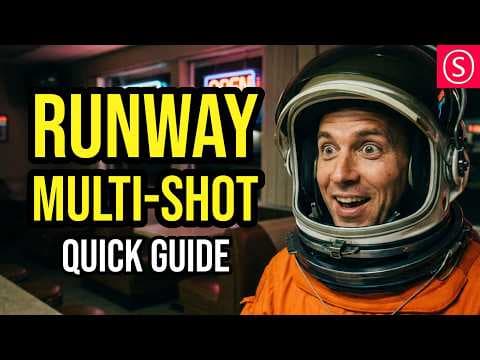
Нова функція Multi‑Shot від Runway: AI‑відео за один запит
Runway представила нову функцію Multi‑Shot, яка дозволяє створювати 5‑15 секундних відеокліпів за одним зображенням та текстовим промптом. Інструмент автоматично розбиває відео на сцени, підтримує стилізацію через референс‑зображення та дає ручне керування кадрами. Це скорочує продакшн короткого відеоконтенту для маркетингу, освіти та соцмедіа.
Ключові тези
- Генерація відео за одним зображенням та промптом (5‑15 сек)
- Автоматичний розбір на сцени з можливістю ручного керування
- Перенос стилю за референс‑зображенням (наприклад, Midjourney)
- Налаштування роздільної здатності, співвідношення сторін та тривалості
- Швидка ітерація для креативних історій та реклами
🟢 Маркетингові команди можуть швидко протестувати декілька варіантів креативу за години, а не тижні, зменшуючи витрати на продакшн. 🟢 Освітні платформи можуть створювати візуальні симуляції для курсів без аніматорів. 🔴 Загроза — швидка конкуренція з аналогічними функціями у тих же моделей, що може зменшити диференціал Runway. 🔴 Потенційні питання з авторським правом на стилі, що витягнуті з референс‑зображень.
Більшість переглядів фокусується на ефектних кадрах, проте реальна цінність полягає в можливості ланцюжково з’єднувати кліпи, створюючи довгіші історії без втрати стилістичної послідовності. Це неочевидний перевага, яка робить Runway придатним для серйозного продакшну, а не лише для демо‑роликів.
Опис відео▼
Yo, you want AI short films? Check this out. Any angle, fresh styles, make your own stories. >> Hello, my friends, and how are you doing? What you've just seen is the new multi-shot video by Runway that uses one prompt and one image to generate a short film between 5 and 15 seconds. As you've seen, it's pretty amazing from the scenes and different camera angles it can generate. But in this video, I also want to show you some tricks on what you can do to get more out of this. So, let's look at the interface real quick. On the top left, you can upload one image here. And then below, you can either have a description of the story or you can have custom scenes that you can then describe one by one. If you have auto, it will create the different scenes for you. Now this can actually also create more scenes than you are allowed in the custom field but the custom field of course gives you more control over what is happening in the individual scenes. Then below that you have selections of the sound that is automatically generated for you. You can select the ratio you want to have here, the resolution and of course also the length of the video. All of that is pretty amazing, but I want to show you some extra tricks to get you even better results. So, one of the tricks I've showed you in one of my other videos that you can check out here is that you can actually use other styles here. For example, I have a mid journey style. I just screenshotted this image of the style preview and use that as a style reference in here to create these scenes here of the astronaut. As you can see, stylistically this will really enhance the ability of Nano Banana to create these cinematic colors and scenes. Another trick I want to show you is prompting for a 2x2 grid 16x9 and then describe the individual images in that grid. So here I have top left, top right, lower left, lower right describing different characters which means that we are ending up with these four characters in one image. Now this can be highly beneficial for our short film creation. So here you can see that I'm using that image and then the description of what is happening and in this case I want to have close-ups of the different characters saying different lines. This is the resulting video. Let's plan this heist. >> But no funny business. I'm here for the cash. Bozo, >> I'm too old for this >> Anybody wants to pull my finger? >> As you can see, it works amazingly well to have multiple defined characters in the same scene. This is a pretty cool workaround to have more control over this process. But there is another cool trick that you can actually do with multi-shot. Let's look at this scene. As you can see, it's already a fantastic start to our story, but we want to go on with the story. So, what you can actually do is that you take a screenshot of the last scene and then use that as the start frame for the next scene describing what is going to happen next. >> Oh my god, what is that? >> Mayday. Mayday. I need help. >> And as you have seen, we're ending up with a pretty fantastic little video. Now, of course, you can do the same process again to go on with the story. Now, of course, as you can expect, the results are not going to be perfect every single time. For example, here you can see where the astronaut is running towards the monster instead of running away from it. But you actually don't lose the complete process because I would suggest that you save all of these videos that you have created and then cut the best scenes together afterwards. So this is how that works. It's very easy. It's super effective. Let me know in the comments what you think about multi-shot video in runway. Thanks for watching and see you soon. Hey,